Release 6.6.16
28 Aug. 2025
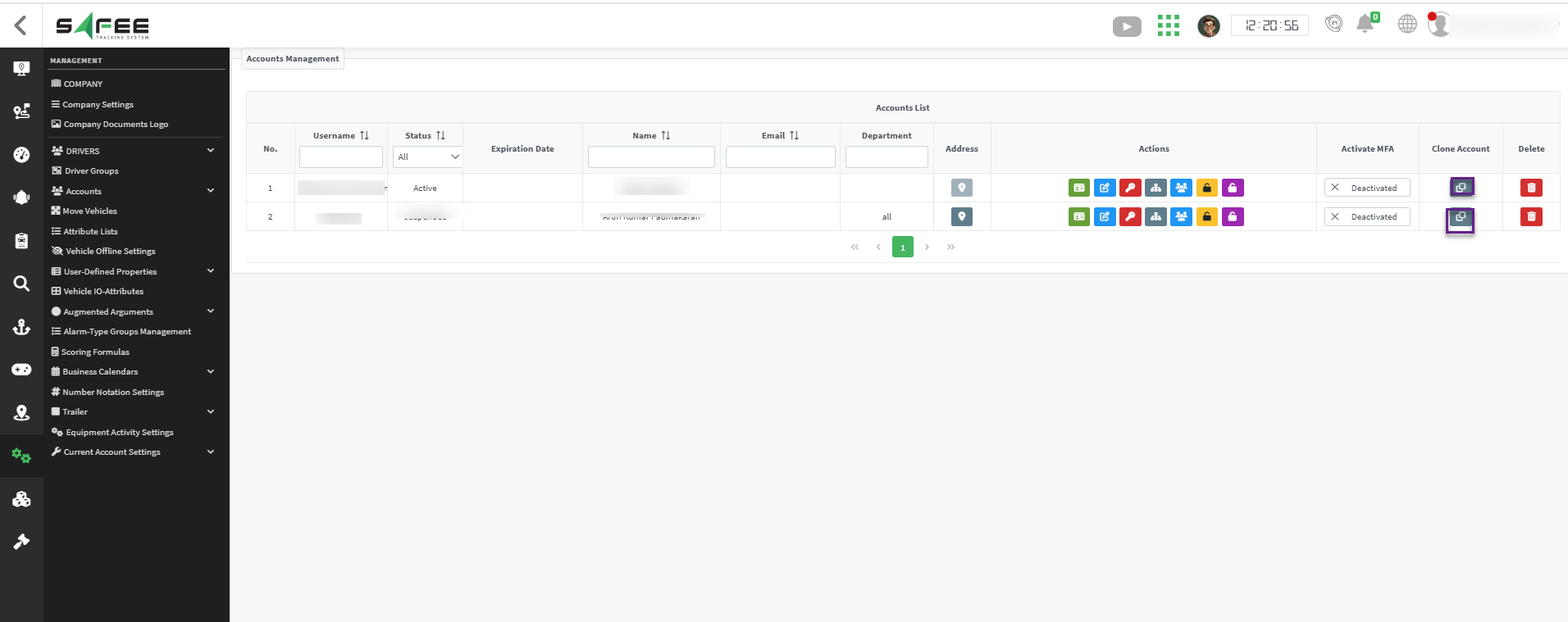
Account Cloning
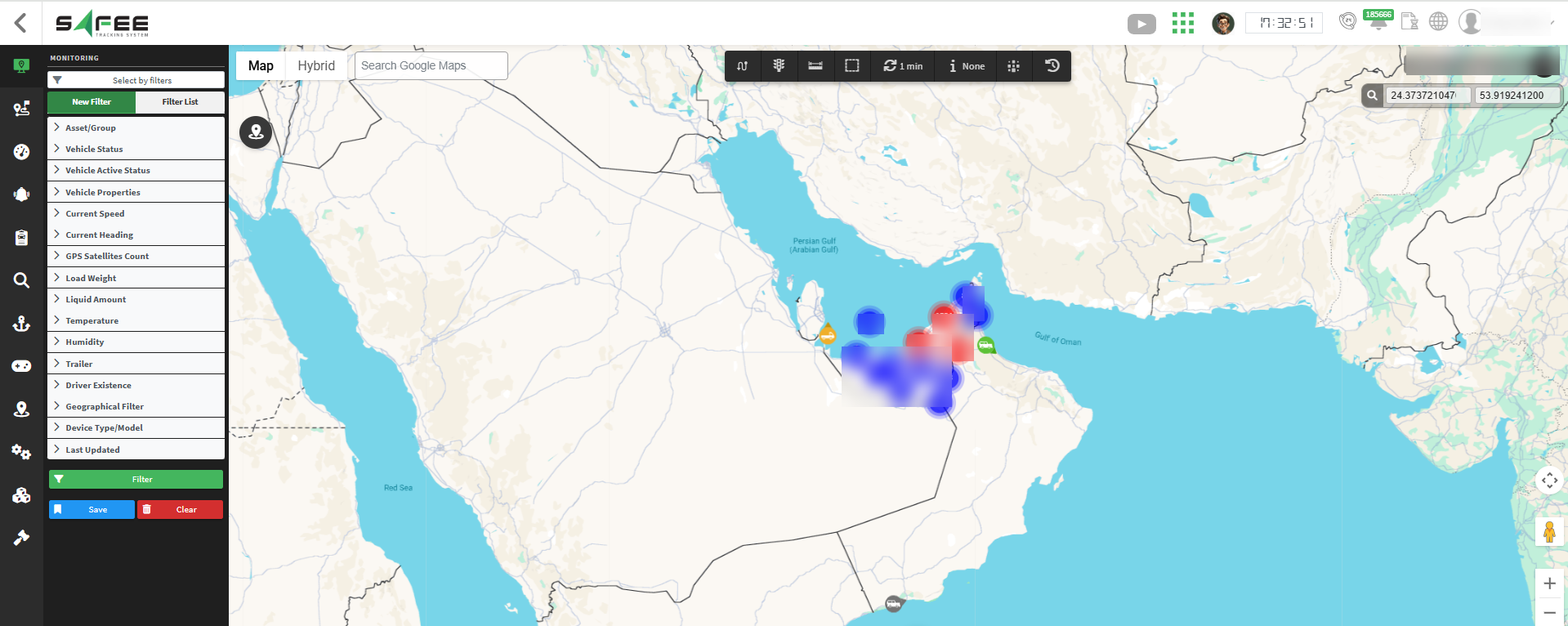
We’ve added a new account cloning capability to the client accounts management page. Company administrators can now duplicate existing client accounts to create new ones with customizable settings.
Key Features:
- Selective cloning options including permissions, access levels, groups, and expiration settings
- Enhanced user experience with improved styling
- Streamlined account creation process for administrators
This feature significantly reduces administrative overhead by allowing quick duplication of client accounts with consistent configuration settings, maintaining security standards while improving operational efficiency.
Added New Vehicle Types
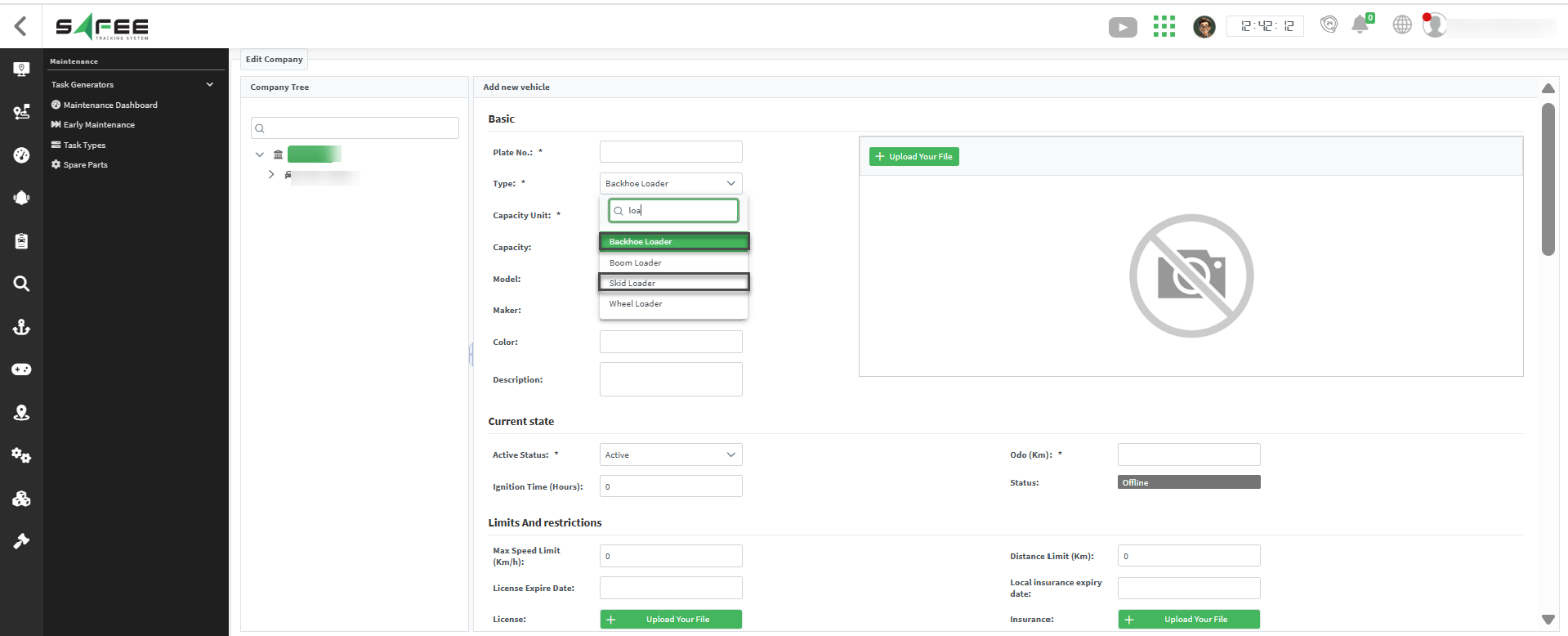
The list of available vehicle types has been expanded to include two new common industrial and construction vehicles.
New Additions:
- Skid Loader
- Backhoe Loader
Users can now accurately log, track, and manage operations and maintenance for these additional vehicle types, ensuring better data consistency and reporting.
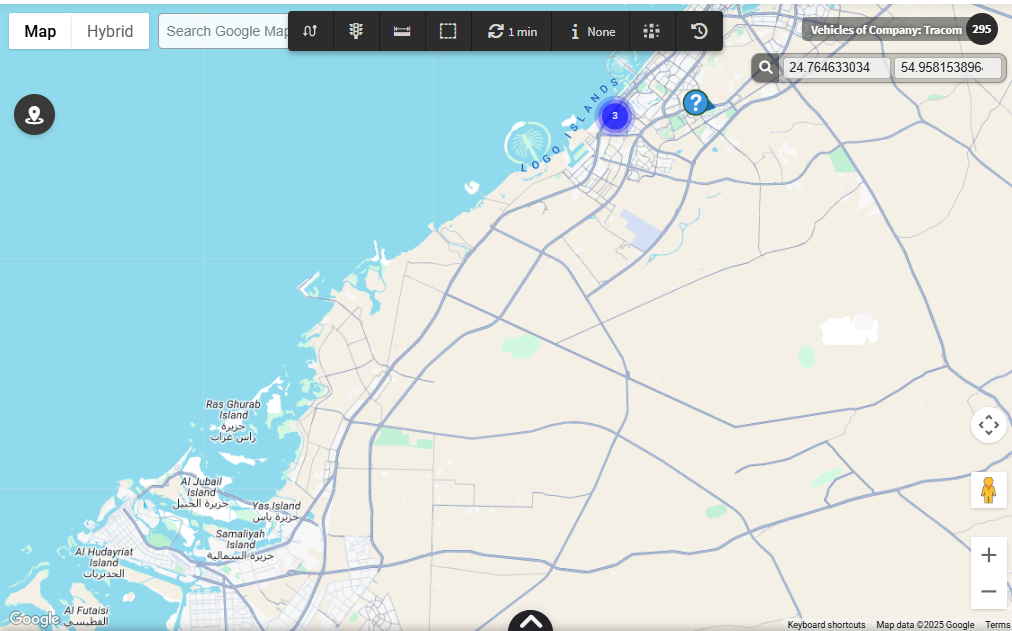
Search By Coordinate
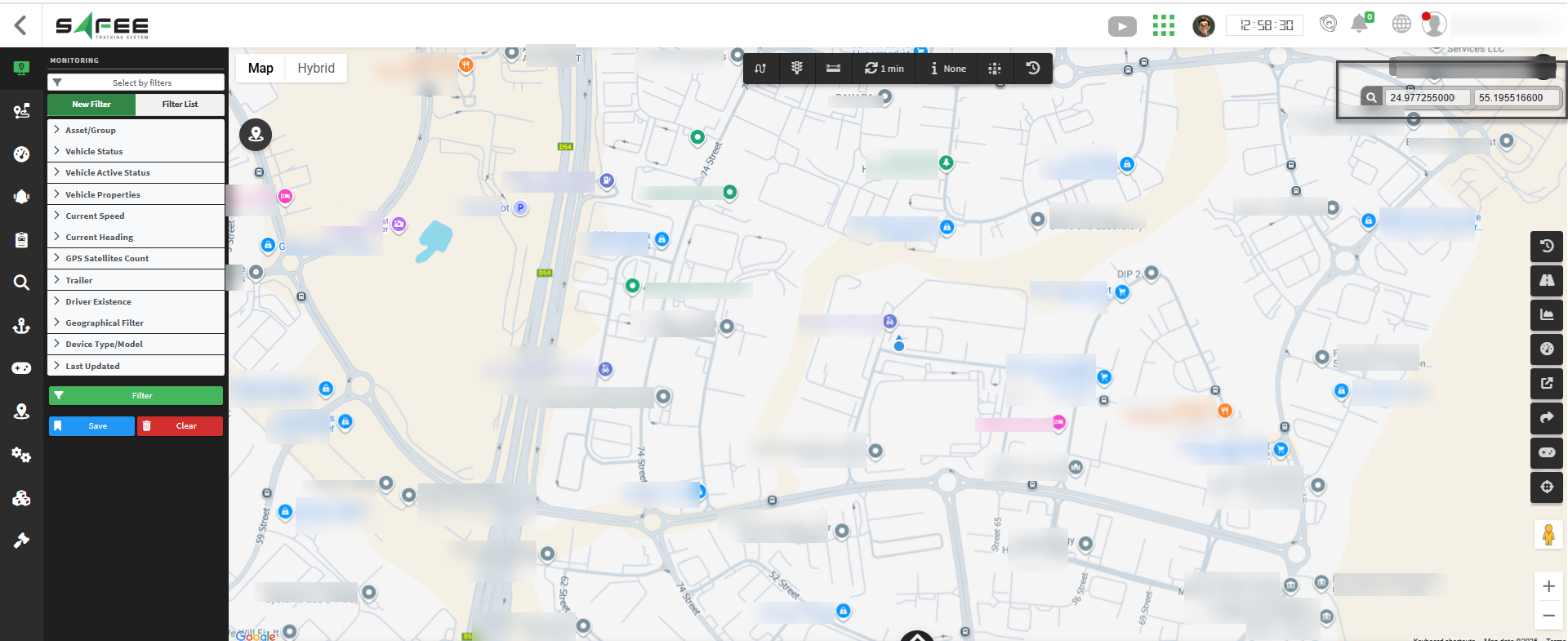
We introduced a powerful new search functionality that allows users to find specific locations directly by entering geographic coordinates.
Key Features:
- Ability to search for a point using latitude and longitude coordinates
- Seamlessly integrated into all monitoring pages, geounit, and heatmap pages
- Provides precise navigation to exact locations on the map
This feature enables quick access to specific points of interest.
Support Maps Localization
We enhanced the mapping system in Safee to provide a consistent, language-localized experience across all map links generated by the platform.
This update ensures that users always view maps in their preferred language, improving accessibility and usability.
Key Features:
- Public monitoring pages now automatically open in the same language as the account that generated the sharing link
- All Google Maps links generated throughout the system (e.g., alarm exploring, reports, etc.) now open Google map page in the language of the account that created them
BLE Raw Data
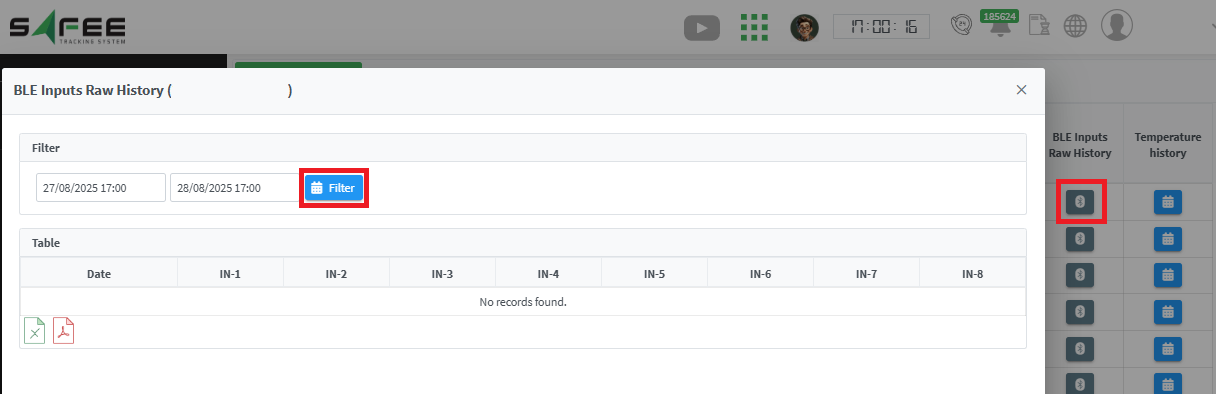
We introduced a new column in the temperature/humidity explorers to visualize and analyze historical raw data received from BLE sensors. The new column aims to show the received data as is before doing any processing to it; enabling the user to investigate any encountered issue with the temperature/humidity values.
How to access:
- From the temperature/humidity explorer, you’ll find a new column entitled “BLE Inputs Raw History”
- If the column is not shown, use “displayed columns” menu to show it
- For each vehicle, click on the Bluetooth icon to show the BLE raw data history
- Filter on the target date range to display the raw data
New Can-Bus info
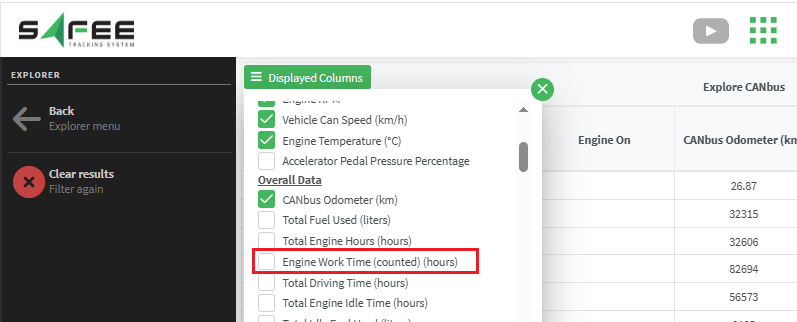
A new Can-Bus parameter was added to the Can-Bus explorer to show the “Engine Worktime (counted)”. You can show the new column through the “Displayed column”.
New Device
The device “MeiTrack MD101” was added to our family.
It is supported on port 8082.
Custom Google Maps Style
We introduced advanced map customization capabilities, allowing each account to tailor the visual style of maps to fit their specific operational needs and preferences.
This feature provides granular control over color schemes and label visibility for a more personalized mapping experience.
Color Scheme Options
-
Default: Enables the standard system map colors.
-
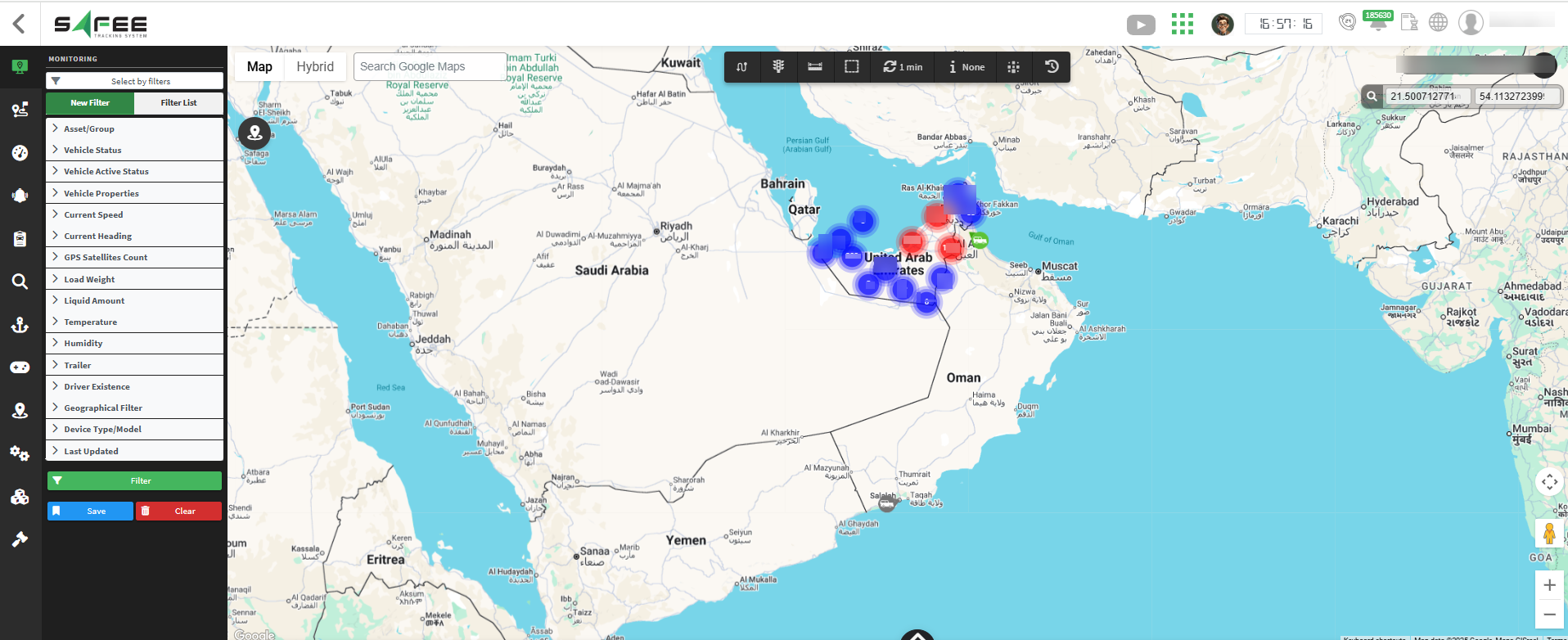
Light: Enables the light-themed color scheme.
-
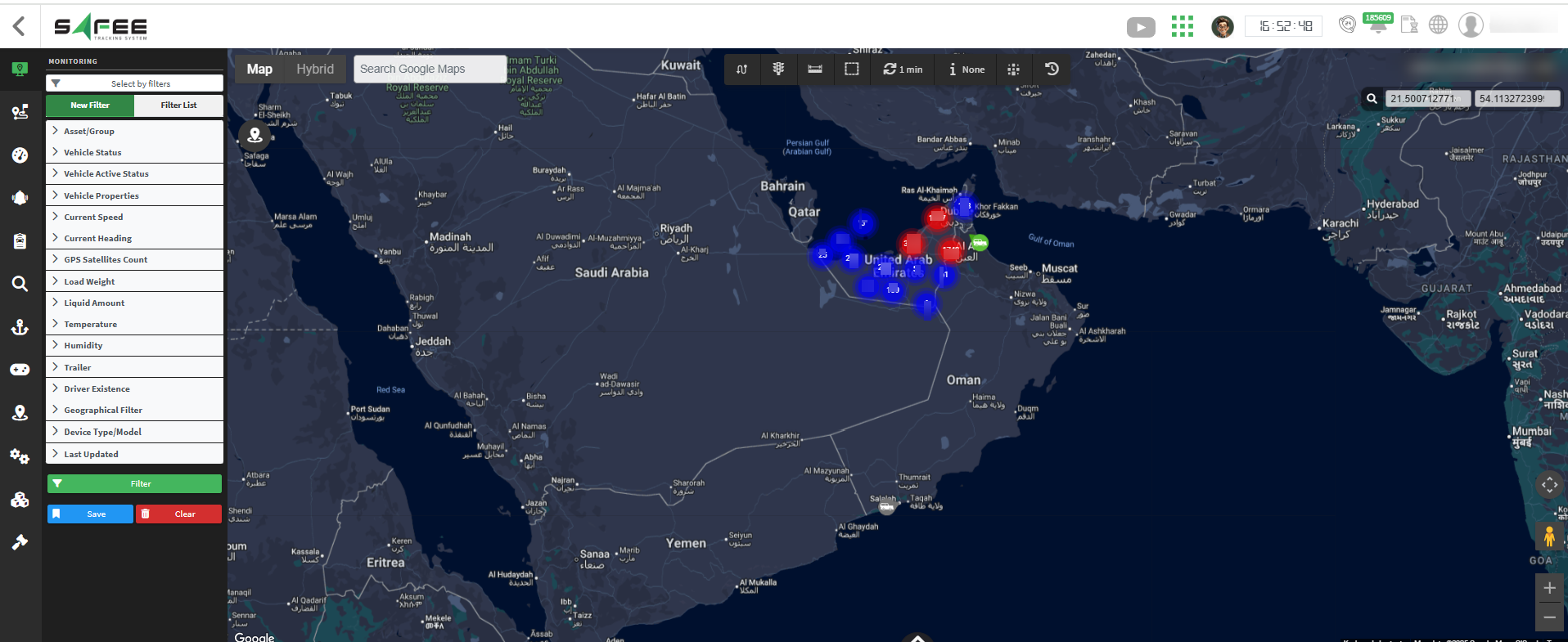
Dark: Enables the dark-themed color scheme.
-
Follow System: Custom organizational color template.
- This option applies your company’s colors, and potentially its design style—directly to the map.
Granular Label Control
Toggle visibility for four distinct label categories:
- Points of Interest
- Political Features
- Infrastructure Elements
- Natural Features
Examples:
-
Hide All Labels:
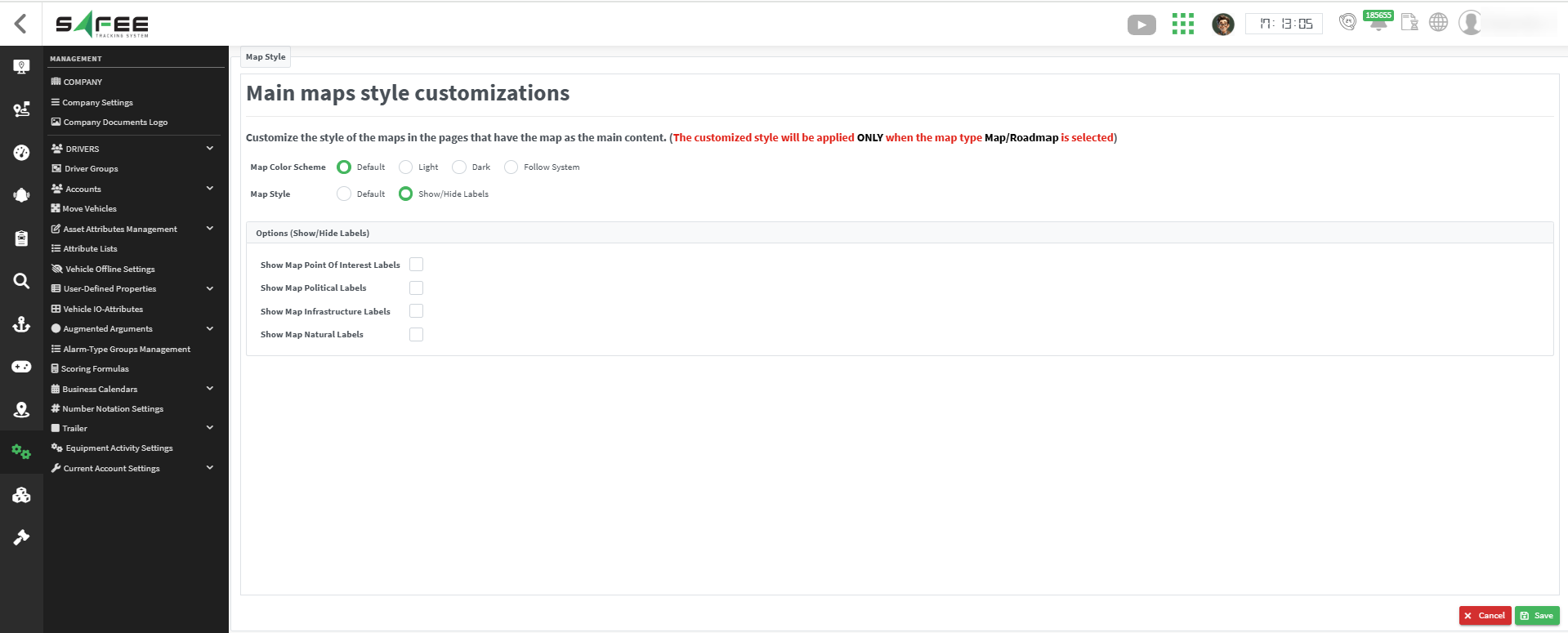
If you choose to hide all the Points of Interest, Political Features, Infrastructure Elements, and Natural Features, the map will appear without labels.
-
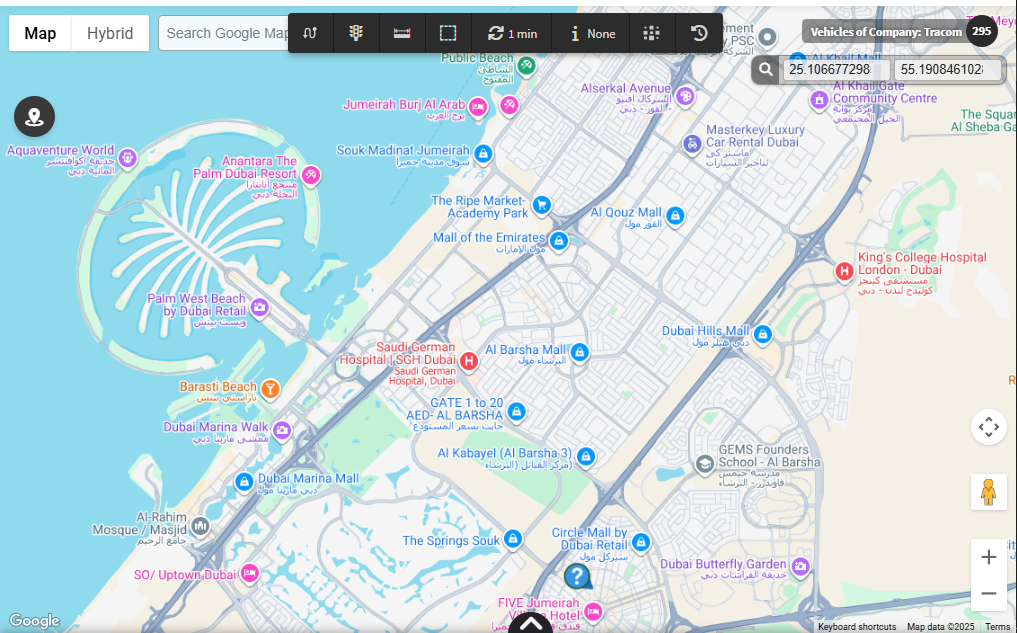
Show Points of Interest Only:
-
These are labels for POIs (points of interest), like restaurants, hotels, museums, parks, gas stations, shops, etc.
-
Turning them off removes business/place names but leaves the map features visible. the image below is for enabling it only.
-
-
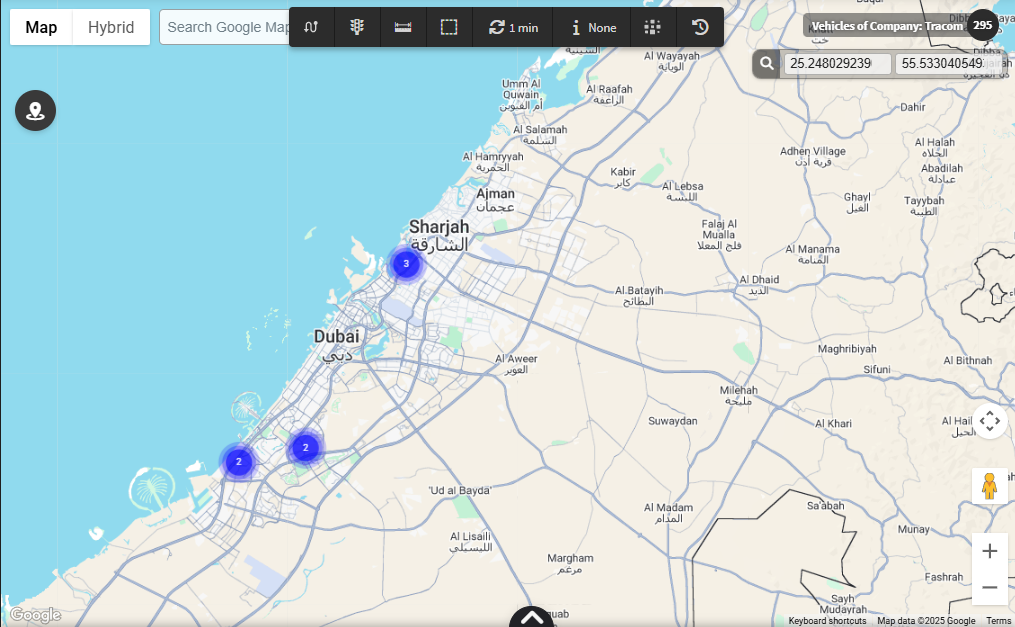
Show Political Features Only:
-
These are labels for political boundaries — countries, states/provinces, cities, districts, etc.
-
If you disable them, the borders might still show, but the text labels like “California” or “France” disappear. the image below is for enabling it only.
-
-
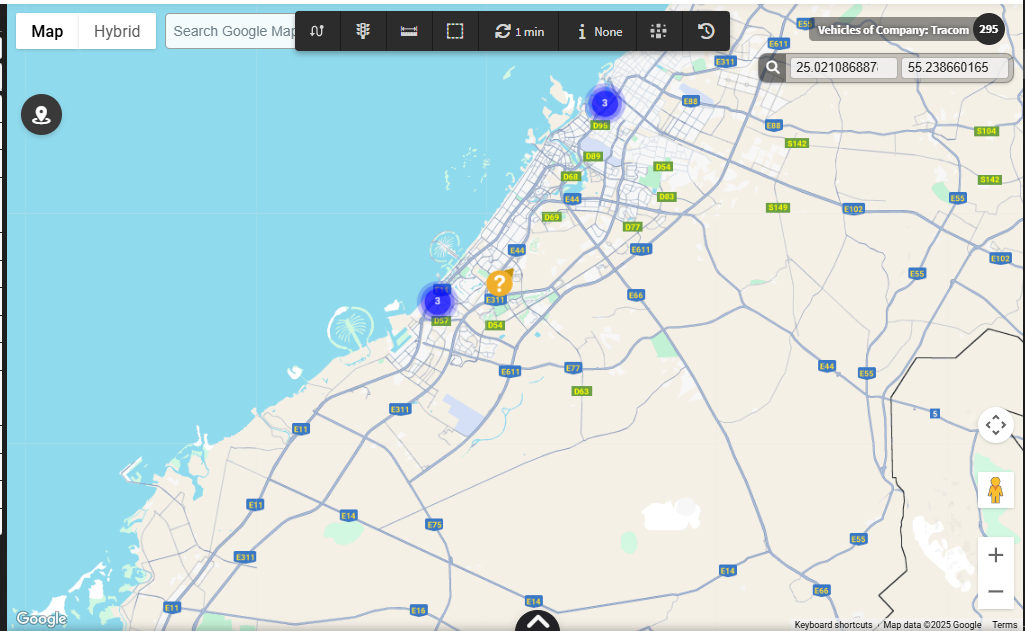
Show Infrastructure Elements Only:
-
These cover transportation-related text, such as road names, highway shields, train stations, airports, and transit lines.
-
Turning them off keeps the roads visible but removes their names/numbers. the image below is for enabling it only.
-
-
Show Natural Features Only:
-
These are labels for natural geographic features, like mountains, rivers, lakes, oceans, forests, deserts, etc.
-
For example, text like “Rocky Mountains” or “Mississippi River.” the image below is for enabling it only.
-