Release 6.7.1
02 Oct. 2025
1. Equipment Activity Enhancement
We added a new source for the equipment activity feature that is “BLE 1 custom #1” parameter from Teltonika devices.
Now, you can determine whether you are using:
- A digital input from your AVL, or
- The Bluetooth parameter “BLE 1 custom #1” to provide the connected equipment activity status.
How to enable it?
From the management tab, under the “equipment activity settings” section, when editing the configuration of a vehicle, you now have two options for the data source:
- Digital inputs: the ordinary settings that you are used to.
- BLE 1 custom #1: the new source that reads the status of the parameter “BLE 1 custom #1” from Teltonika devices and interprets it as the activity status of the connected equipment.
- Expected values:
0or1→ expressing the active/inactive status of the equipment as per your settings.
- Expected values:
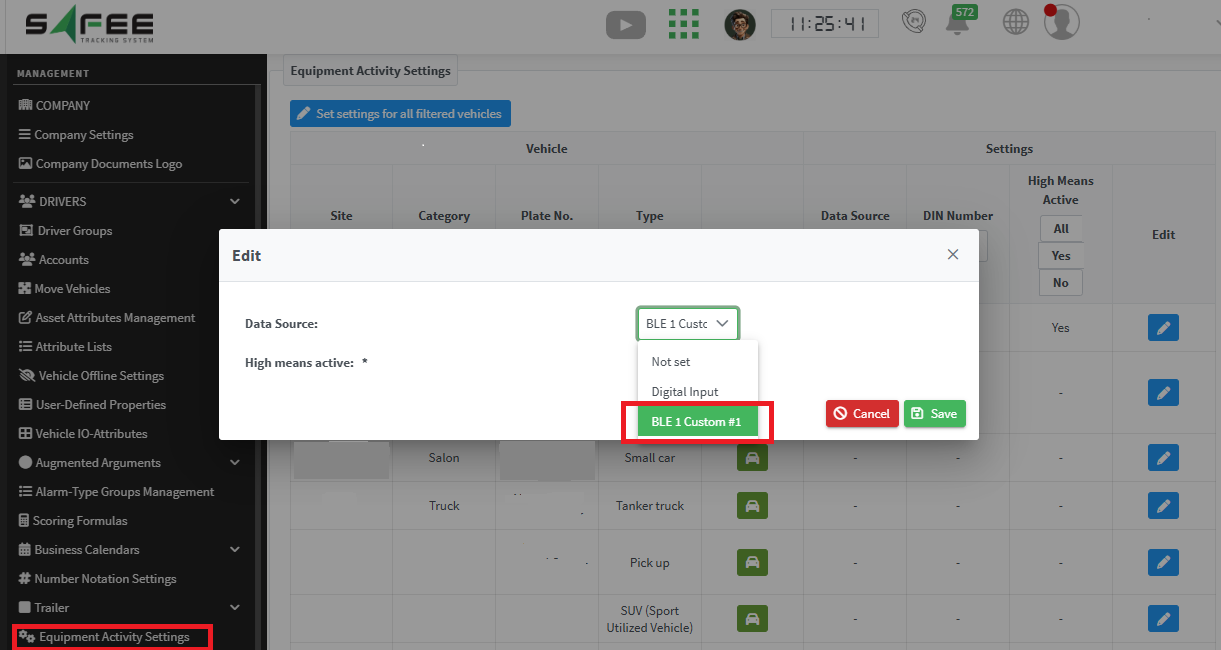
After choosing the data source, make sure to select the applied logic from this source through the available checkbox “High means active”.
➡️ The result will be reflected in the Equipment Activity report as usual.
You will get in this report the periods during which the BLE 1 custom #1 was active and inactive, representing the activity times of your equipment.
NB. Trip Invalidity
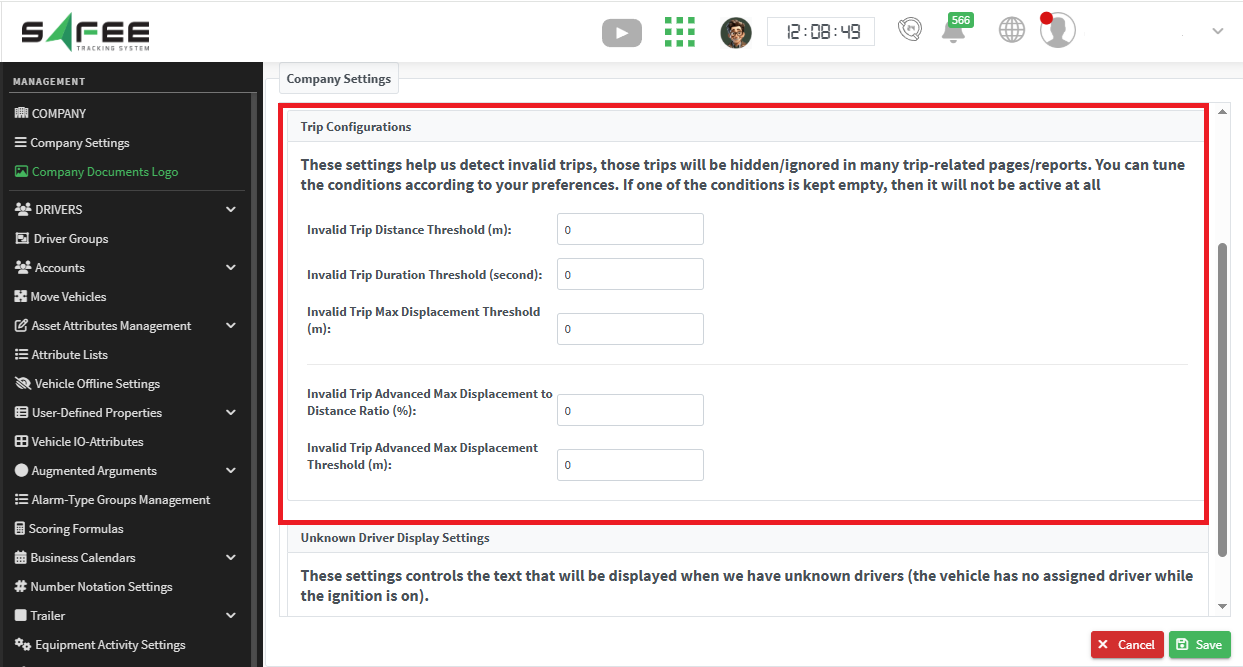
Please pay attention to the “Trip validity” settings under your company as it will affect showing the data in the report.
- Invalid trips according to the company settings (shown in the image below) won’t be displayed in any report.
- For more details about invalid trips, please revisit release 6.6.0.
2. BLE Battery Charge
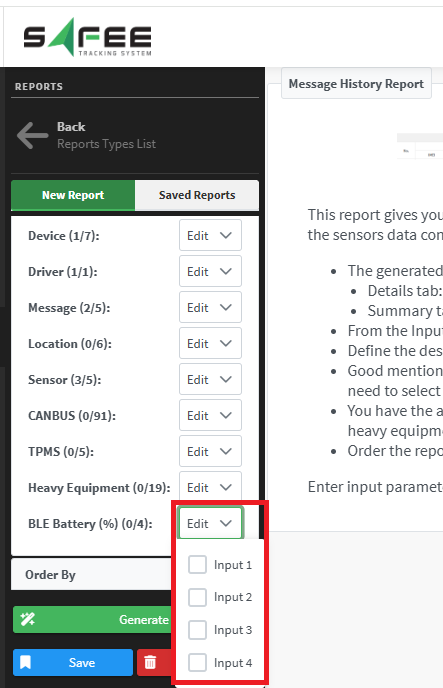
We added a new data selector to the “Message History” report to enable showing the BLE battery charge status at the report output.
- It shows the percentage of the battery voltage of the BLE sensors (#1, #2, #3, #4) as received from the device.
- Note: This feature is supported for Teltonika devices for now.
3. Device-Based Settings Module
We introduced a new license/module named “Device-Based Settings” that enables you to control the bad behavior of some devices when the GPS signal is weak or lost.
- The module can be configured by the partner only, then granted to the company admin to assign it to targeted vehicles.
- Once assigned to a vehicle, the settings will be applied to its device if and only if the module configurations support that device type/module.
Device-Based Settings include:
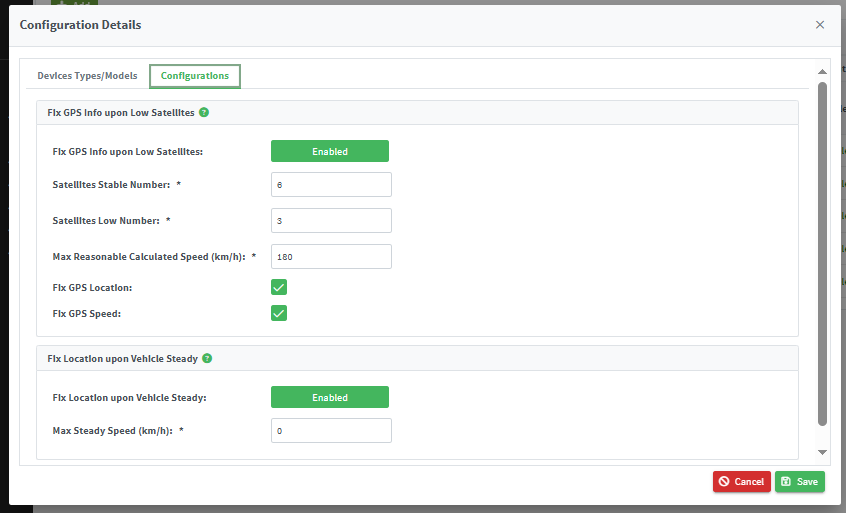
A. Fix GPS Info upon Low Satellites
-
Satellites stable numbers:
Minimum number of satellites above which GPS is considered strong and no correction will be applied. -
Satellites low number:
Minimum number of satellites below which GPS is considered weak and the location is invalid.- If Fix GPS location is enabled → system maintains the last valid location and stops updating it.
- If Fix GPS speed is enabled → system sets speed to
0to keep data consistent.
-
Max Reasonable Calculated Speed:
Applied when the number of satellites is between the two thresholds (stable and low).- System calculates a new speed based on location & time difference.
- If calculated speed < threshold → speed is valid.
- If not → speed is invalid and fixed (
0) if Fix GPS speed is checked.
B. Fix Location upon Vehicle Steady
- Requires setting Max Steady Speed.
- If the speed in two consecutive messages ≤ Max Steady Speed → system considers the vehicle at standstill and fixes the location.
- Otherwise → no change to the location.
4. License/Modules Enhancement
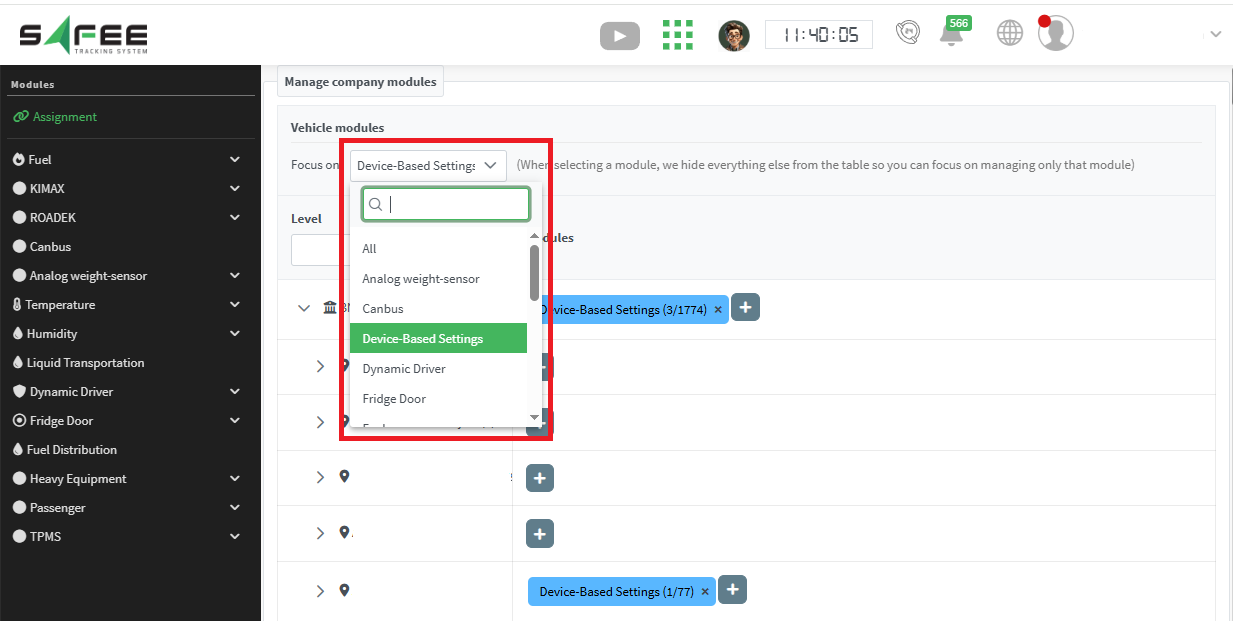
It is now more convenient to look up a license/module on the license/module assignment pages.
- You can focus on one license/module to quickly reach the assigned assets.