Release 6.7.2
23 Oct. 2025
1. Vehicle Idle Report Enhancement
We introduce significant enhancements to the Vehicle Idle Report, providing users with:
- More flexible calculation methods
- Improved data visualization using AG-Grid
- Additional attribute selection capabilities for vehicles and drivers
1. 🧭 Enhanced Idle Time Calculation Options
We’ve added three distinct calculation methods for idle time periods within your selected date ranges:
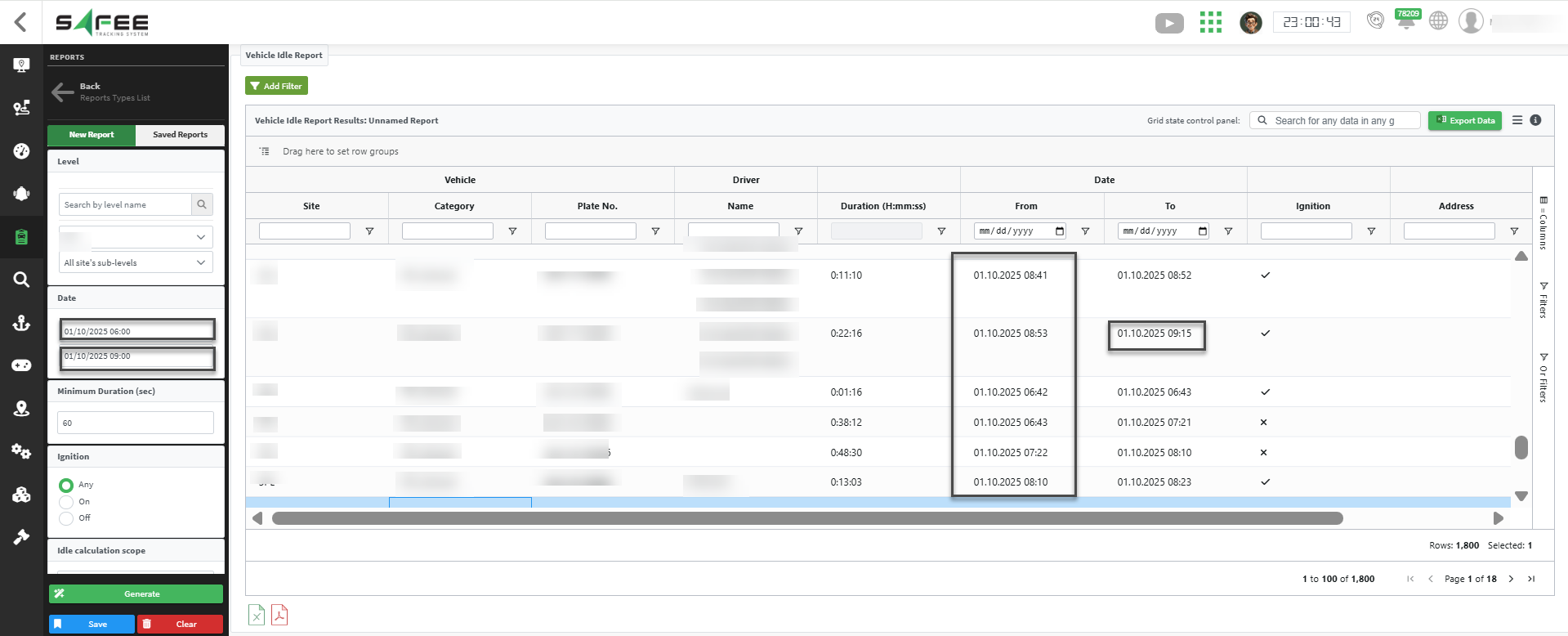
Option 1: Slots Started Within Range
Includes idle periods that start within the selected date range, regardless of when they end.
Use this when you want to see all idle periods that began during your reporting period, even if they ended later.
Example:
If range is between 01/10/2025 06:00 and 01/10/2025 09:00,
it will display all the results that start after 01/10/2025 06:00,
without limiting to those that end before 01/10/2025 09:00.
Option 2: Slots Ended Within Range
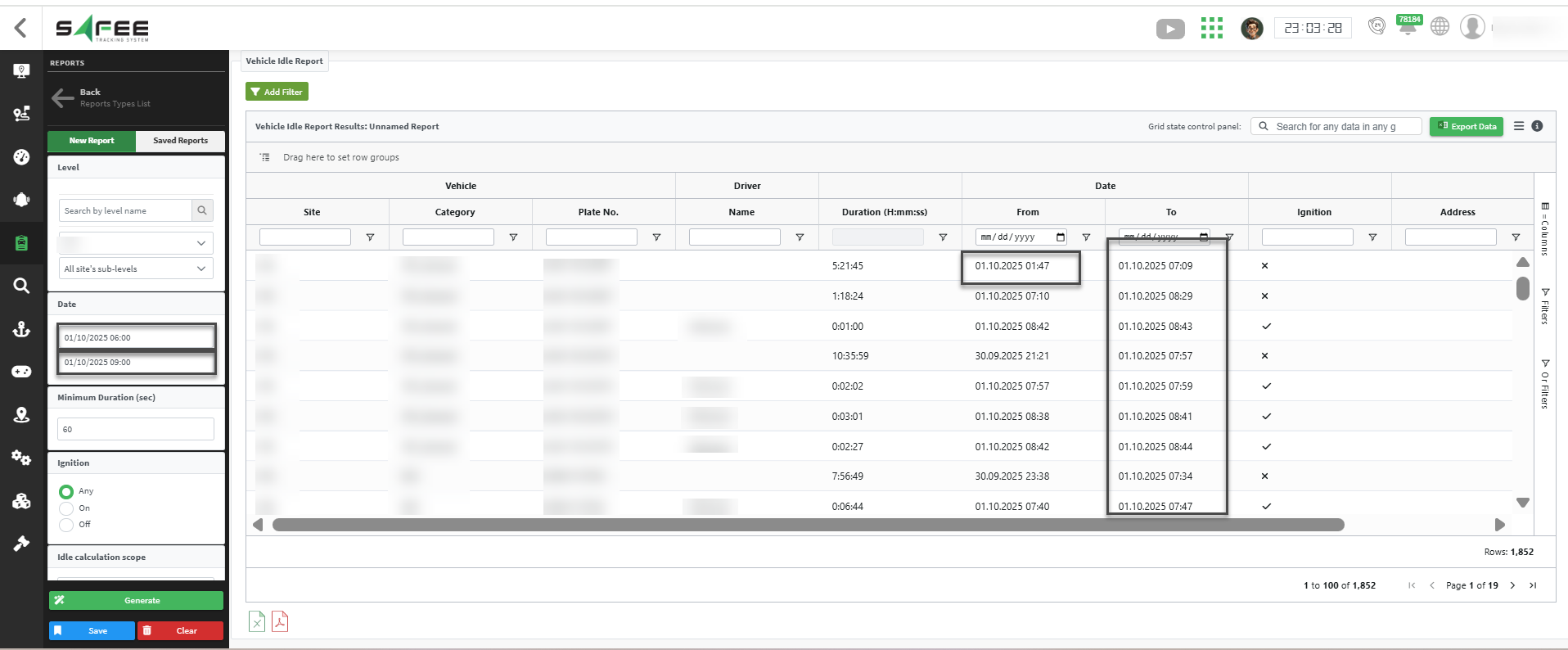
Includes idle periods that end within the selected date range, regardless of when they start.
Use this when you’re interested in idle periods that concluded during your reporting period,
and start dates are not relevant to your use case.
Example:
If range is between 01/10/2025 06:00 and 01/10/2025 09:00,
it will display all the results that end before 01/10/2025 09:00,
without limiting to those that start after 01/10/2025 06:00.
Option 3: Time Periods Within Range (Default)
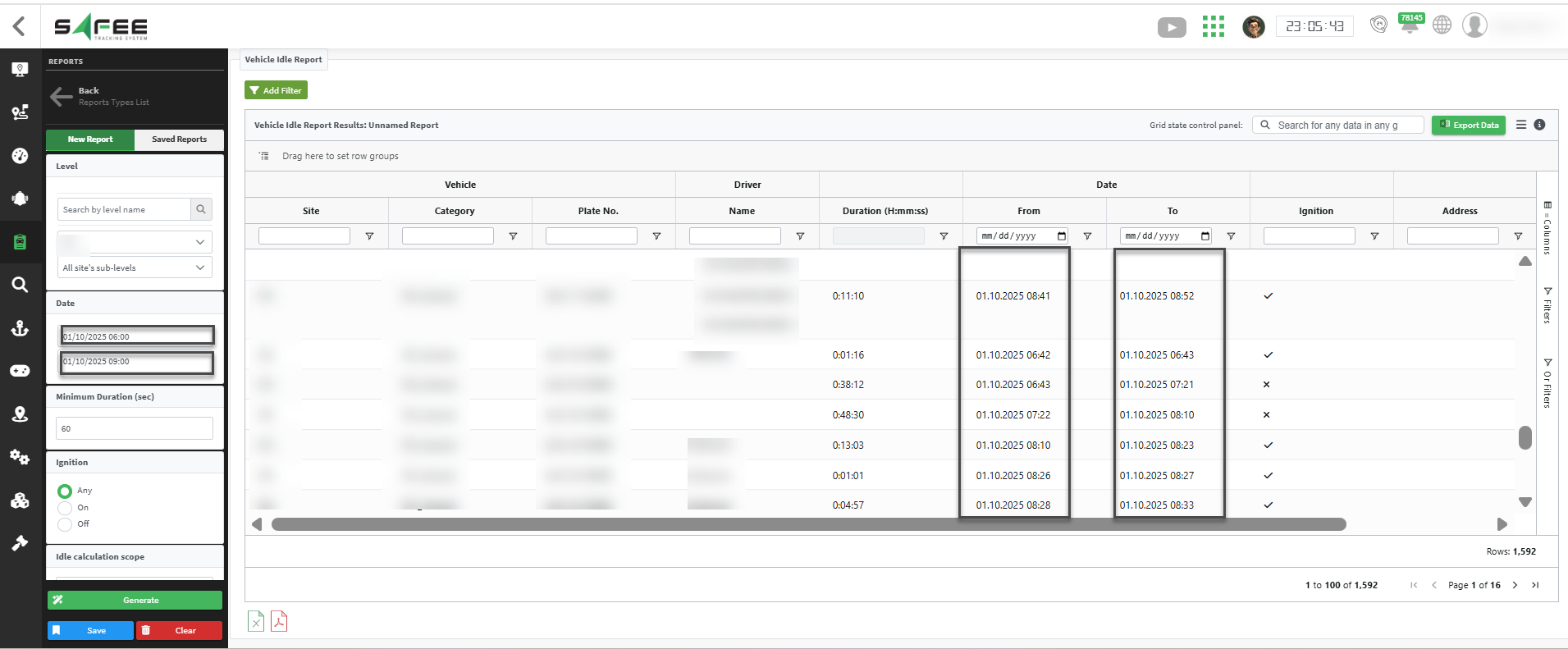
Includes only the portions of idle periods that fall within the selected date range.
Use this when you need precise idle time calculations strictly within your date range,
avoiding any time outside your reporting window.
Example:
If range is between 01/10/2025 06:00 and 01/10/2025 09:00,
it will display only the results that start after 01/10/2025 06:00
and end before 01/10/2025 09:00.
2. Time Tolerance for Administrative Alarm Notifications
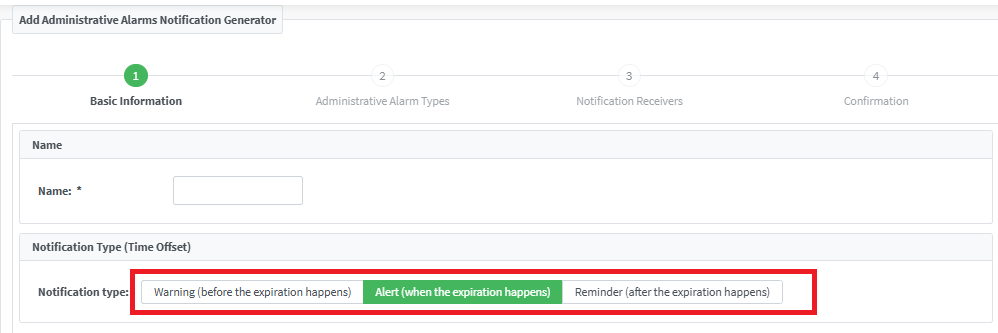
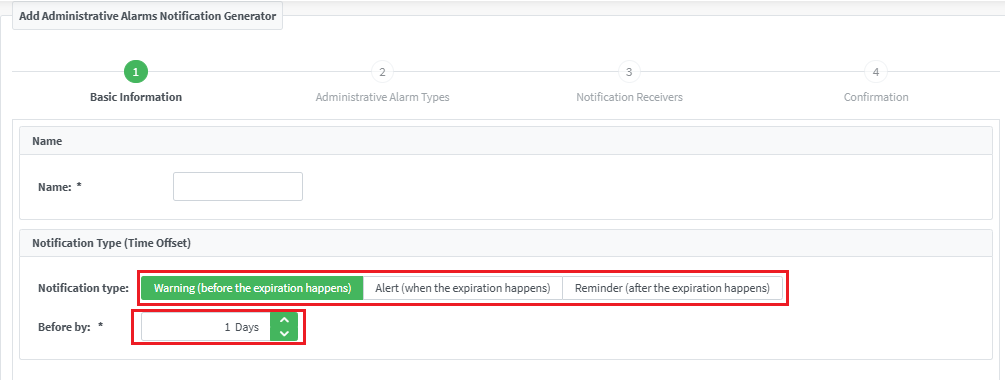
A new configuration setting has been introduced to provide greater control over the timing of administrative alarm notifications.
Users can now receive three levels of notifications:
- ⚠️ Warning
- 🚨 Alert
- 🔁 Reminder
Key Details
Warning Notification
- Generated when configured with a positive day count before expiration (e.g., 3 days before expiry).
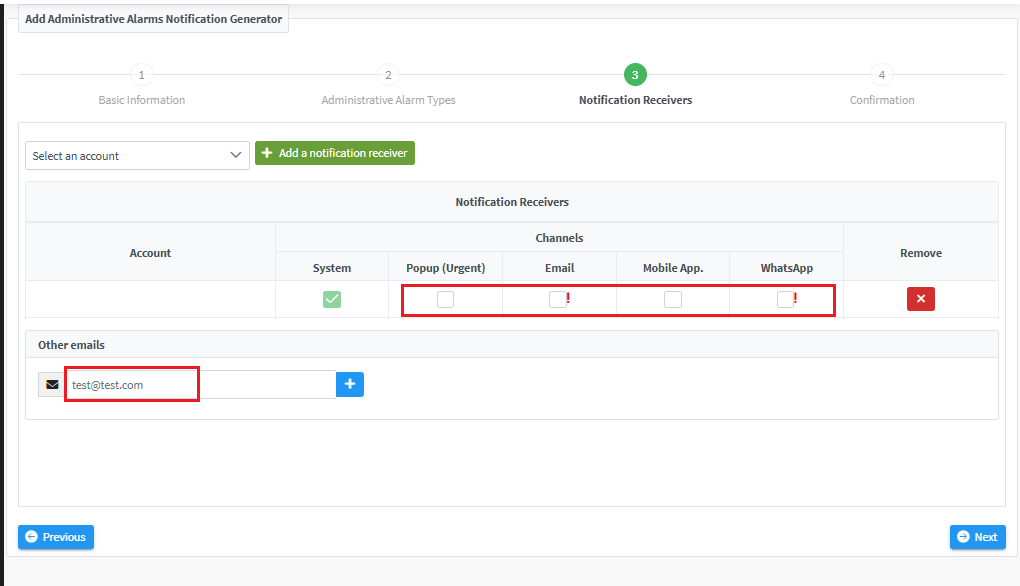
- Sent through all channels specified in the “Notification Receivers” step.
Alert Notification
- Generated exactly on the expiration date (default behavior).
- Sent through all channels specified in the “Notification Receivers” step.
Reminder Notification
- Generated when configured with a positive day count after expiration (e.g., 2 days after expiry).
- Sent through all channels specified in the “Notification Receivers” step.
Default Setting: Notifications are generated on the expiration date (Alert Notification).
N.B. Please note that you can set only one type of notifications (warning, alert, or reminder) at a time! That is, setting up an administrative alarm notification through the corresponding wizard can set only one type of notification, as per your choice in the first step.